
Exporting ChatGPT conversations to PDF sounds straightforward.
Until you actually try it.
Most people end up using browser print or copy-paste, only to discover that the result barely resembles the original conversation.
If you’re sharing ChatGPT outputs with teammates, clients, or classmates, the problem becomes obvious fast.
ChatGPT is great at generating content. It’s not great at turning that content into a usable document.
Why people want ChatGPT PDFs in the first place
ChatGPT is no longer just a chat tool.
People use it to produce:
- research summaries
- product ideas and specifications
- technical explanations and code
- reports and analyses
- writing drafts and outlines
At some point, those outputs need to leave the chat window.
But getting there from a ChatGPT conversation is harder than it should be.
The hidden friction in exporting ChatGPT conversations
Most workflows look something like this:
- 1 Copy text from ChatGPT
- 2 Paste into Google Docs or Word
- 3 Fix formatting manually
- 4 Adjust spacing and headings
- 5 Reformat code blocks
- 6 Export to PDF
It works, but it’s inefficient.
And more importantly, it breaks the original structure that made the response useful in the first place.
What should be a one-click action turns into a mini editing project.
A better way to export ChatGPT to PDF
Instead of rebuilding ChatGPT outputs by hand, the simplest approach is to export them as structured documents from the start.
When you save a ChatGPT response properly, exporting to PDF becomes a natural next step rather than a cleanup task.
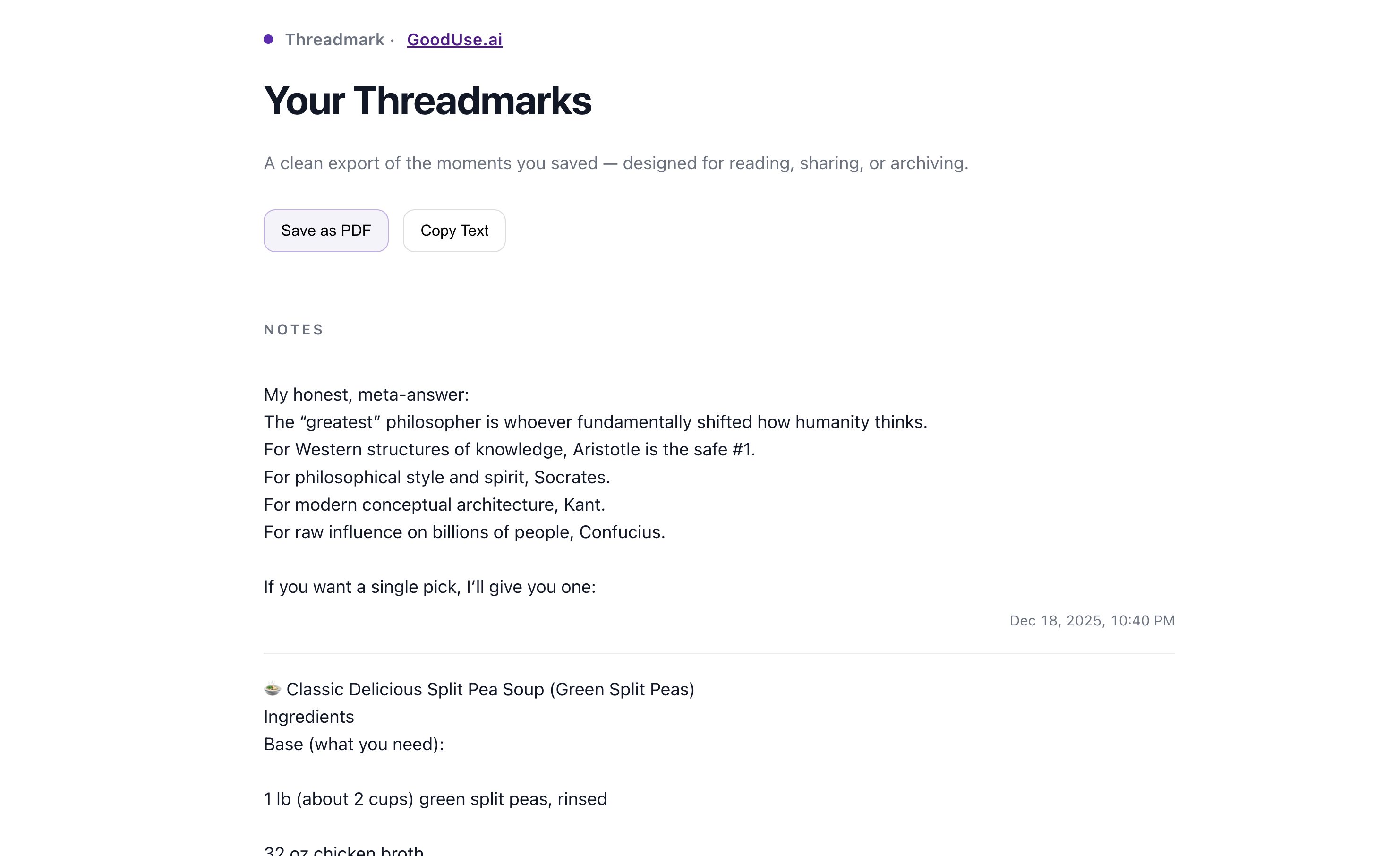
- preserves hierarchy and spacing
- keeps bullet points and headings intact
- maintains readable code blocks
- feels like a real report, not a chat log
You spend less time formatting and more time using the content.
When exporting ChatGPT to PDF actually matters
Exporting ChatGPT conversations to PDF is especially useful when you:
- share insights with coworkers or clients
- create reports from AI-generated analysis
- present outputs that need to be trusted
- document product decisions or research
- archive important conversations
- build a library of knowledge over time
In these moments, clarity matters more than convenience.
A clean PDF is easier to read, easier to share, and easier to trust.
The difference between chat and documentation
Bridging that gap is where most people struggle.
When you can reliably export ChatGPT conversations to PDF, AI stops being ephemeral and starts becoming permanent.
That’s when ChatGPT becomes part of your workflow, not just a tool you occasionally use.
A practical next step
There are only a few ways to export ChatGPT content today:
- 1 Print the page and accept messy formatting
- 2 Copy-paste and manually clean everything
- 3 Use a workflow designed specifically for exporting ChatGPT conversations
If you want the simplest path, Threadmark was built to remove that friction.
Try it once
You don’t need to overhaul your workflow to see the difference. Just export one ChatGPT response to PDF and compare it to your usual method.
- Highlight one useful answer in ChatGPT
- Save it with Threadmark
- Export it to PDF
If you want to explore further
You don’t need more tools. You need fewer broken steps between ideas and documents.
That’s the gap Threadmark closes.